
DocsCalling
Contacts and calls
People you have recorded with, online status, status message, calling like a phone, missed calls and the Calls list.
Contacts
Everyone you have been in a session with shows up in the Contacts area on the home screen. When you add someone to your list:
- they stay on the home screen with their profile photo and name,
- if they are online, a green dot lights up on the corner of their photo and their status message is shown,
- you can call them into your session with one click.
Right-clicking a contact opens a menu:
| Person | Menu |
|---|---|
| Someone you added to your list | Call into session (while calling, Cancel the call), Copy number, Remove from contacts |
| Someone you met but didn’t add | Add to contacts, Remove from this list |

Visibility is mutual
You see that someone is online only if they have added you too. One-sided adding protects privacy: a stranger can’t find out when you are online just by adding you to their list.
If you turn off Let my contacts see when I am online and call me in Settings › Preferences, nobody sees you online and nobody can call you; since it’s mutual, you don’t see anyone online either.
Status message
In the Your status box at the top right of the home screen, you can write a short message of up to 80 characters, like on WhatsApp: “Free to record this week”, “In the studio”. Your message appears under your name for your contacts. It is also in Settings, as Status.
Calling someone
Press the phone button next to the contact, or Call into session in the right-click menu. If you don’t have a session open, Mixapod starts one for you first.
On your screen, an Outgoing call window opens: the other person’s portrait, first Calling… and then Ringing…, a quiet ringback sound and a Cancel button.
On the other side, an Incoming invite window opens, like a phone: your photo, your name, your status message and a quiet, unobtrusive chime. Join (Enter) or Decline (Esc).
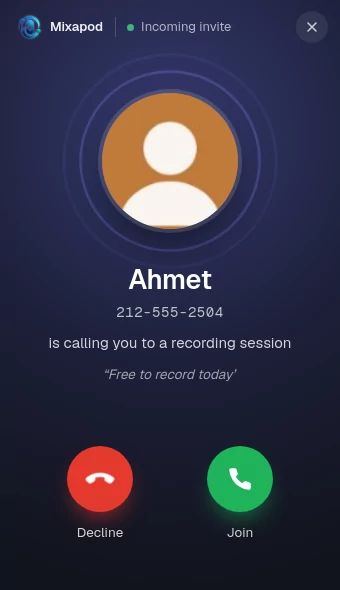
- When the other person presses Join, they go straight into your session and both windows close on their own.
- If they press Decline, your window shows it.
- If there is no answer within 60 seconds, the call ends: you see No answer, and the other person gets a missed call.
If your contact is offline
When you call a contact who is offline, the invite waits up to 10 minutes; your window says Will see it when Mixapod opens. If the person opens Mixapod within that time, the invite pops up for them. If you leave the session, the invite is canceled.
Missed calls
When you can’t answer a call, it becomes a missed call, just like on a phone:
- if the Mixapod window isn’t in front, a Windows notification shows who called,
- it is added to the Calls list in the sidebar; missed calls you haven’t seen yet are highlighted.
If your computer was off while someone called your Mixapod number, you get the missed call notification when you open Mixapod (within 24 hours).

Calls list
The Calls list below Settings in the sidebar shows incoming, outgoing and missed calls: the 8 most recent calls are on screen, and the last 50 calls are saved.
- To call back, press the small phone button on the row.
- Empty the list with Clear.