
DocsGetting started
Your first recording
Recording an episode from start to finish, step by step: from starting a session to the merged MP3.
This page walks you through one episode from start to finish. Each step has its own page with the details.
Before you start
- Everyone should have Mixapod installed: Installation.
- Everyone wears headphones. Sound from speakers gets into the microphone and leaks into that person’s own recording.
- Everyone should have chosen the right microphone; the level bar on the home screen should move when they speak.
1. Start the session
You are the host. On the home screen, type the episode’s name in the Episode title field of the New session card (for example “Episode 12”) and press Start session. The episode title is used in the name of the recording folder and the merged files.
2. Invite your guests
The invite box sits at the top right of the lobby:
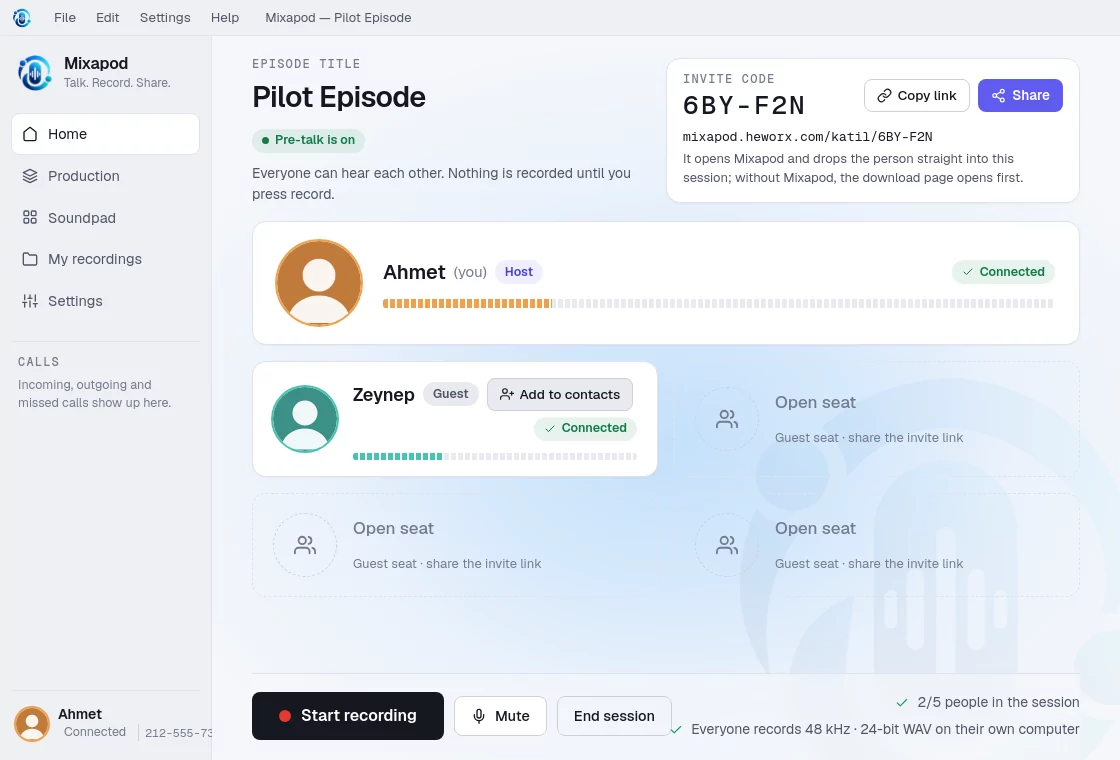
- Get the invite link with Copy link and send it to your guest, or send it with WhatsApp, e-mail or Telegram from the Share menu.
- When the guest clicks the link, their Mixapod opens and goes straight into the session. If the link doesn’t open, the guest types the code into the Join a session box in their own Mixapod.
- If it’s someone you have recorded with before, you can call them with Share › Call a contact or from Contacts on the home screen; if you know their Mixapod number, you can dial it.
3. Talk and check the sound
In the lobby everyone hears each other. Meanwhile:
- Check that the level bar on each person’s card moves when they speak.
- If you hear an echo, someone isn’t wearing headphones.
- If you like, adjust the preamp for your microphone.
4. Press record
Once everyone is connected, the Start recording button becomes active. When you press it, a 3, 2, 1 countdown appears on screen, and when it ends, everyone’s computer starts recording at the same moment. The timer shows hundredths of a second.
While recording:
- You can turn off your own microphone with Mute; that part of the recording is silent.
- If you are the host, you can play effects with the Soundpad; effects are recorded as a separate track.
- If someone’s internet goes down, their recording continues on their own computer. Details: Recording › If the connection drops.
5. Stop recording
Press Stop recording. A transfer ring appears on the guests’ screens: their files are on their way to you. When everyone’s file has arrived, Mixapod balances the voices and merges them.
6. Get the files
When merging finishes, the Recording ready screen opens:
- You can listen to the merged recording in the player.
- Show in folder takes you to where the files are: a stereo MP3 and WAV.
- With Add to production you can put together a single podcast file with intro and outro music.
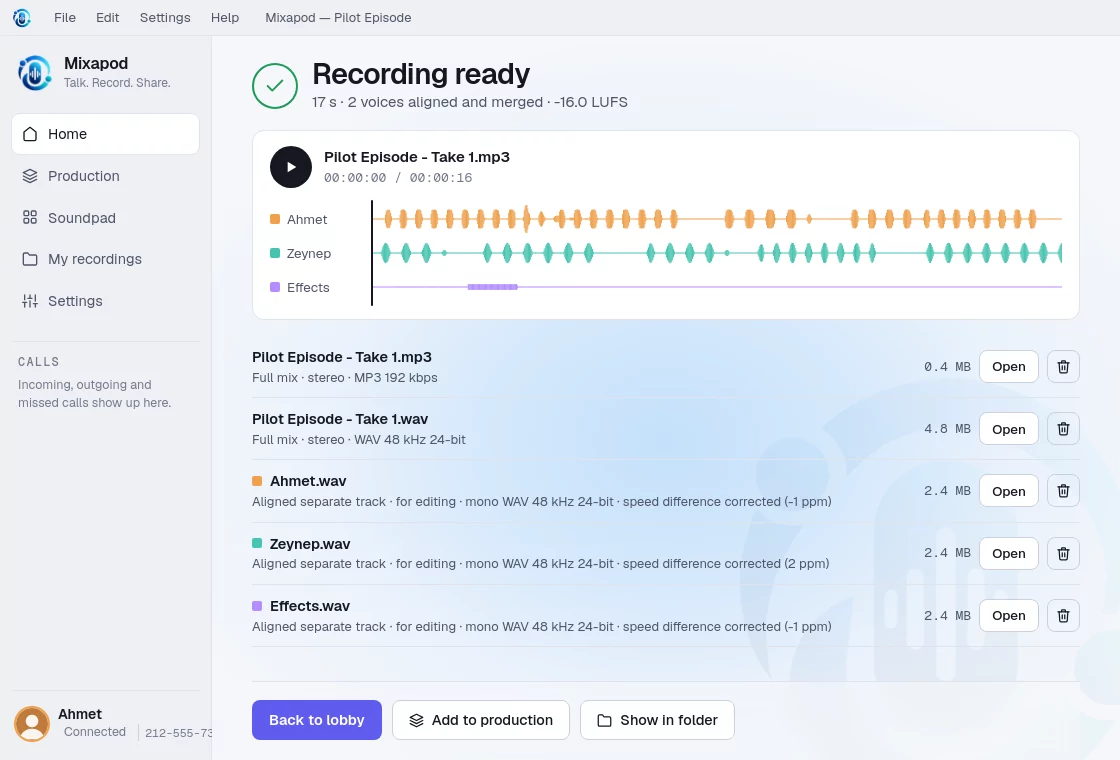
That’s it. For a second take with the same guests, press Back to lobby; for a new episode, start a new session.