
DocsGetting started
Installation and updates
Downloading and installing Mixapod, what to do the first time you open it, and how new versions arrive.
System requirements
| Operating system | Windows 10 or Windows 11, 64-bit |
| Microphone | A USB microphone, a microphone connected to a sound card, or a mixer output |
| Headphones | Required: sound from speakers leaks into your own recording |
| Internet | To hear each other while recording and to move the files once the recording ends |
| Disk | About 520 MB per person per hour (48 kHz, 24-bit mono WAV) |
For now, Mixapod is available only for Windows. Everyone taking part must have Mixapod installed on their computer.
Download and install
- Go to mixapod.heworx.com and press Download for Windows.
- Run the downloaded
Mixapod-Setupfile. The installer doesn’t ask for administrator rights; the app installs into your own user folder. - When installation finishes, Mixapod opens and a shortcut is added to your desktop.
If Windows shows a warning
Because Mixapod is not digitally signed yet, a “Windows protected your PC” window may appear during the first installation.
- Click the More info link in the window.
- Press the Run anyway button that appears.
You see this warning only on the first installation; updates install silently.
First launch
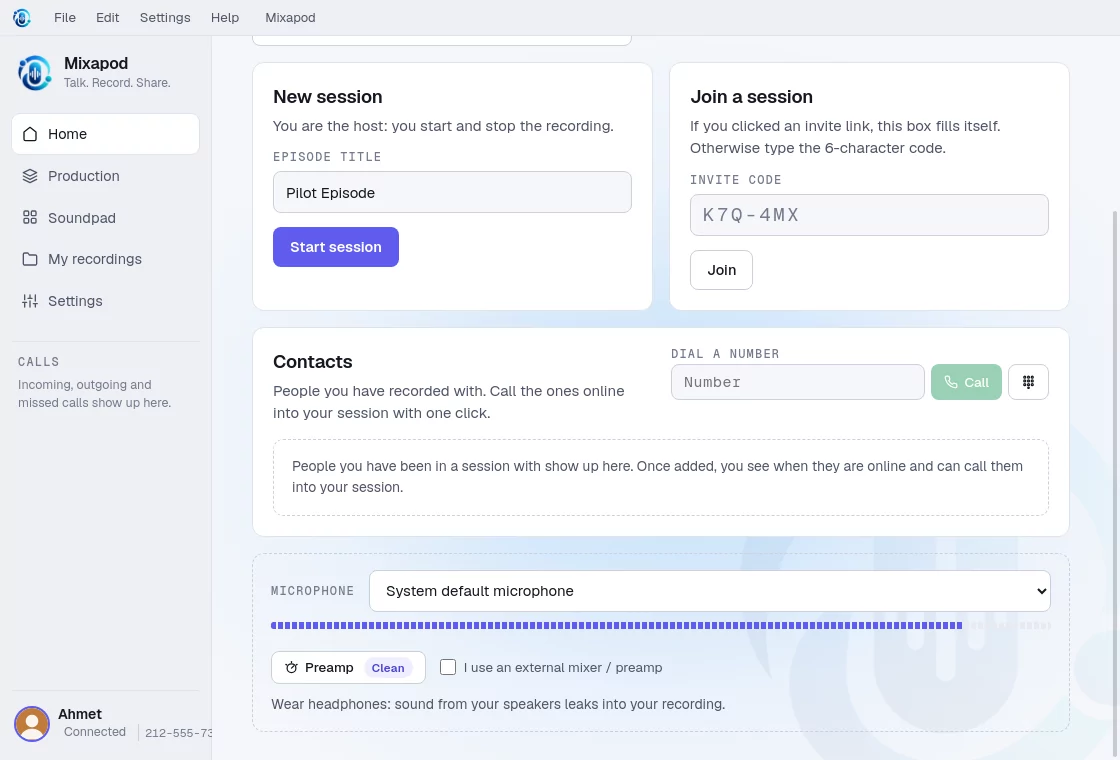
- Enter your name. The other participants see you by this name. Once saved, the name stays locked on the home screen so it doesn’t change by accident; to change it, press Change in Settings next to it.
- Choose your microphone. In the Microphone box at the bottom of the home screen, choose the right microphone and speak to see the level bar move.
- If you like, add a profile photo with Upload photo in Settings › Profile. Your photo appears in sessions, contact lists and call windows.
If Windows asks for microphone access, allow it. If access is not allowed, Mixapod shows a warning on the home screen; for a fix, see Troubleshooting › Microphone.
System tray and starting with Windows
- When you close the window with X, Mixapod keeps running in the system tray. That way your contacts can call you and a recording in progress is not cut off. To quit completely, right-click the Mixapod icon in the tray and choose Exit, or use File › Quit in the menu.
- By default, Mixapod starts in the tray when Windows starts. If you don’t want that, you can turn it off in Settings › Preferences.
Updates
Mixapod finds new versions on its own:
- It checks the update server a few seconds after it opens, then every four hours.
- If there is a new version, it downloads it in the background and verifies with SHA-256 that the file is intact.
- A New version ready box appears in the sidebar. When you press Install and restart, the update installs silently and Mixapod opens again.
Uninstalling
You can uninstall Mixapod from the list in Windows Settings › Apps. Your recordings stay in the Documents\Mixapod folder; uninstalling doesn’t touch them.