
DocsSound
Soundpad
A separate pad window for laughs, jingles, music beds and effects; 1024 pads, pages, modes, colors, icons, and the Effects track that goes into the recording.
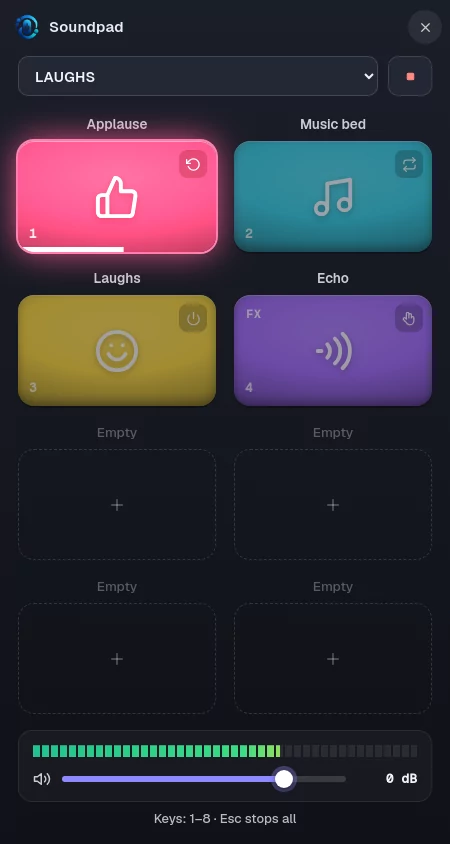
The Soundpad is a separate window that works like the pads on a broadcast desk. The sound you trigger goes into the recording and into your guests’ headphones.
Opening it
- Soundpad in the sidebar, File › Soundpad… in the menu, or Ctrl+B.
- The Open Soundpad button on the Settings › Soundpad tab.
The window always stays on top and can stay open even while Mixapod is in the system tray.
In a session, only the host can play the pads; when you are a guest, the window says pads play only for the host. Outside a session, anyone can try them.
Playing pads
- Click a pad or press its keyboard shortcut: 1…8 for the first eight pads on the page; in the 16-pad layout, Q W E R T Y U I for the next eight.
- A pad that is playing lights up, and a progress line appears along its bottom edge.
- Esc or the Stop all button stops every sound that is playing (in the 8-pad layout, the button shows only an icon).
- The level bar at the bottom shows the pads’ output; the volume slider next to it sets the shared level of all pads (−24 … +6 dB). Double-click to return to 0 dB.
Modes
| Mode | Behavior |
|---|---|
| One shot | Plays the sound from the start on every press (default for new pads) |
| Toggle | One press starts, a second press stops |
| Hold | Plays as long as you hold it, stops when you let go |
| Loop | Plays over and over until you stop it: for music beds |
FX pads: voice effects
Instead of a sound file, you can give a pad a voice effect. While you hold the pad, your microphone goes through the effect; let go and you sound normal again. The effect goes into the recording and your guests hear it live.
- In the pad settings, pick an empty pad and press one of the effects under or give this pad a voice effect for your microphone. On a pad that already has an effect you can switch to another one from the list.
- Add FX EFFECTS page puts all 12 effects on the first empty page and names it FX EFFECTS. In the 8-pad layout they spread over two pages: FX EFFECTS and FX EFFECTS 2.
- An FX pad plays as Hold (the default) or Toggle. One effect is on at a time; pressing another FX pad switches to it.
- Mix sets how much of the effect you hear, and the second slider is the effect’s own setting. Try turns the effect on and off.
- In the pad window, FX pads show FX in the top left corner and glow while the effect is on.
- Echo, Reverb and Stadium are added on top of your voice, so the echo rings out naturally after you let go. The other effects replace your voice and return to normal right away.
- While no FX pad is held, your voice passes through the effect stage unchanged and without delay, so the recording stays aligned.
| Effect | What it does | Setting |
|---|---|---|
| Echo | A repeating echo | Delay, 80–800 ms |
| Reverb | A hall or church sound | Room size |
| Stadium | A huge space with echo and delay | Space size |
| Deep voice | Lowers your voice | 1–12 semitones down |
| High voice | Raises your voice | 1–12 semitones up |
| Anonymous | An unrecognizable, narrow voice | 3–8 semitones down |
| Robot | A metallic robot voice | Tone, 30–200 Hz |
| Megaphone | A harsh, narrow megaphone | Drive |
| Telephone | A phone line | Drive |
| Walkie-talkie | Static and a burst of noise on release | Static |
| Underwater | A muffled, wobbling voice | Depth |
| Alien | A wobbling sci-fi sound | Speed, 0.2–3 Hz |
Programming pads
Pads are programmed on the Settings › Soundpad tab. Clicking an empty + pad in the pad window also takes you straight there.

- Adding a sound: drag and drop an audio file onto the pad. The label comes from the file name (without the extension); change it if you like.
- Adding in bulk: if you drop several files or a folder (up to two subfolders deep), the sounds fill the empty pads in order, starting from the selected pad.
- Color: choose one of the preset colors.
- Volume: each pad has its own level (−24 … +6 dB). Sounds are already balanced automatically; this setting is added on top of that.
- Icon: a simple icon in the middle of the pad. Mixapod guesses an icon from the file name; you can choose from 50 built-in icons or drag and drop your own image. Your own icons are kept in a separate library.
Supported audio formats: WAV, MP3, M4A, AAC, FLAC, OGG, OPUS; up to 80 MB per file. Sounds are copied into Mixapod’s own folder, so the pad keeps working even if you move the original file.
Layout and pages
- You can choose the 8 pads · tall or 16 pads layout.
- There are 1024 pads in total; you switch pages with the drop-down menu at the top.
- Give pages your own names: LAUGHS, JINGLES, TRANSITIONS. These names appear in the menu.
- Only the sounds of the page on screen are loaded in advance; the others load when you press them, so even 1000 effects don’t slow the app down.
In the recording and the call
- Pad sounds go into the recording as a separate track called Effects, at the moment and level they were played. In the merge, it is placed in the center of the mix.
- Guests hear pad sounds in the live call.
- The host hears pad sounds in their headphones; the level bar on the host card also shows the pad sound.